








My desktop looked like a digital junk drawer. Icons scattered across the screen. Files I downloaded weeks ago are still sitting there. Folders I created with good intentions, but never actually used. Every time I opened my laptop, this visual chaos greeted me.
I’ve tried organizing my desktop manually more times than I want to admit. The pattern was always the same. I would spend thirty minutes creating folders. Everything got sorted into categories like “Work,” “Personal,” and “To Sort Later.” The desktop looked clean for maybe three days. Then new files appeared. Within a week, chaos returned.
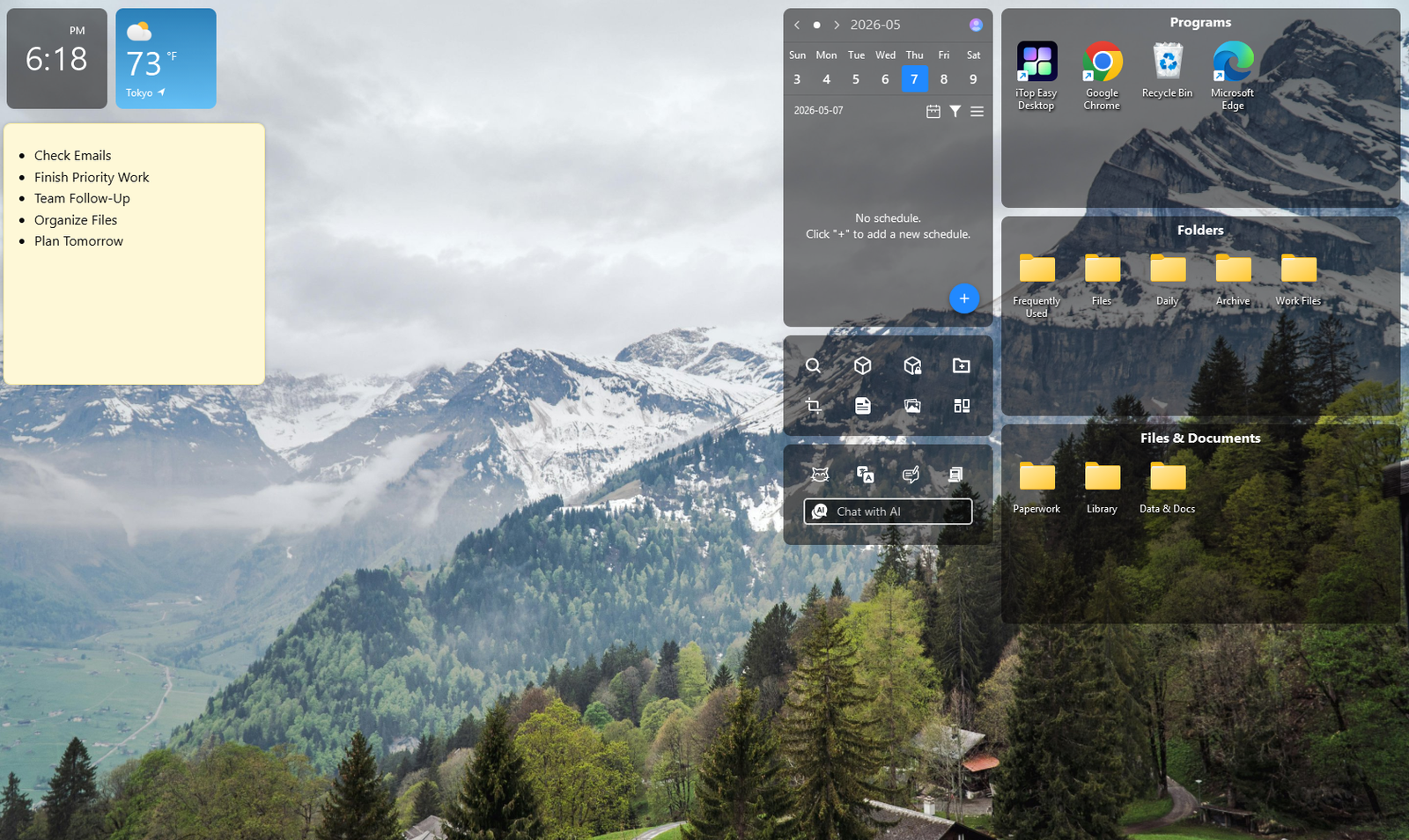
At some point, I decided to try iTop Easy Desktop. What stood out right away was how it helps group everything into neat spaces, plus features like AI Assistant, customizable boxes, and even widgets that make the desktop feel more interactive and manageable.
Why Desktop Mess Happens in the First Place
Before jumping into solutions, understanding why desktops become messy helps prevent the problem from recurring. I analyzed my own habits over several weeks to identify the patterns.
The desktop becomes the default location for everything. Downloads land there. Screenshots save there automatically. Files are temporarily dragged there during projects. The “I’ll organize this later” mentality takes over. Later never comes.
Understanding these patterns helped me realize the solution needed to be automatic or at least extremely easy. iTop Easy Desktop is exactly a desktop organizer software that can automatically clean up your desktop and create a neat, organized workspace.
How to Clean Up a Messy Desktop: My Step-by-Step Process
Step 1: Delete What You Actually Don’t Need
Before installing any organizational software, I started with deletion. This step sounds obvious, but most people skip it. I certainly did in previous cleanup attempts.
I went through every file on my desktop asking one question: Have I opened this in the past month? If the answer was no, I had to justify keeping it. Most files failed this test.
What I deleted:
- Old screenshots I took for projects already completed
- Installation files for software already installed
- Documents I downloaded “just in case” but never referenced
- Duplicate files with names like “Document_final_v2_FINAL.docx.”
- Shortcuts to programs I never actually use
This cleanup took about ten minutes. My desktop went from 87 icons to 31 icons. That reduction alone made a noticeable difference. However, 31 icons still created visual clutter.
Step 2: Group Related Items Using Desktop Boxes
After deleting unnecessary files, I installed iTop Easy Desktop to organize what remained. The software is freeware, which removed the barrier of wondering if it was worth paying for.
The 1-Click Auto-Organization feature of iTop Easy Desktop automatically sorts all desktop icons into smart, customizable groups such as Documents, Images, Applications, and Folders.
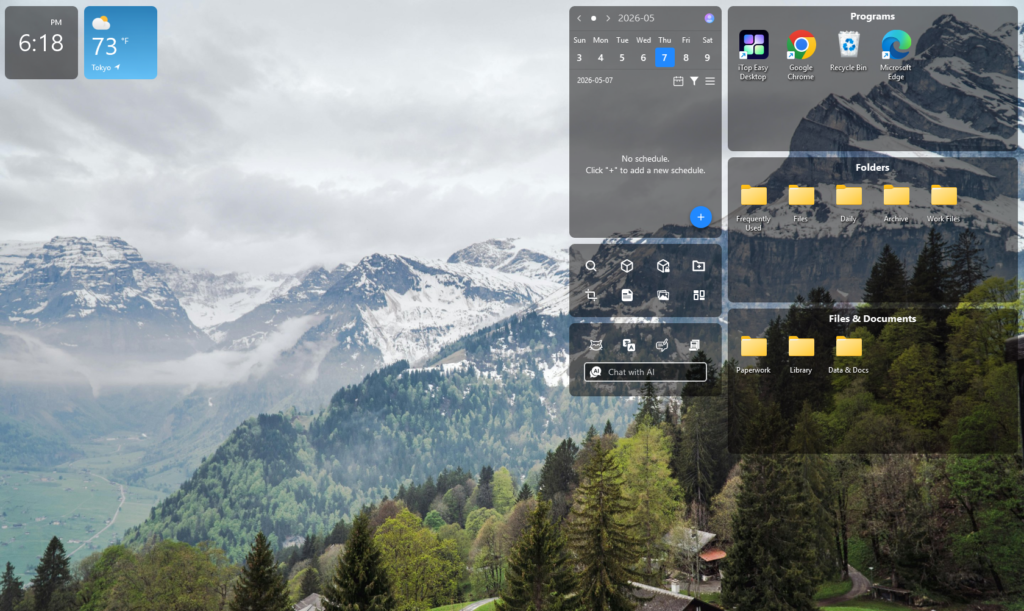
The key feature I used was desktop boxes. These are containers that group related files together. Instead of having files scattered across the desktop, boxes consolidate them into organized spaces.
How I created my first boxes:
- Right-clicked on the desktop and selected “Create Box.”
- Named the box “Active Projects.”
- Drag all work-related folders and files into this box
- Created additional boxes for “Personal,” “Downloads,” and “Tools.”
- Moved remaining desktop items into appropriate boxes
The process of sorting files into boxes took about 3 minutes. What made this different from creating folders manually was the visual organization. Boxes sit on the desktop as contained units. They are immediately accessible but do not create the scattered icon chaos.
What worked well about boxes:
- Drag-and-drop functionality was smooth and intuitive
- Boxes could be positioned anywhere on the desktop
- Visual clutter was reduced dramatically while keeping files accessible
- Right-click options allowed customizing which columns display
Minor issues I encountered:
- Initial confusion about which organizational mode to choose
- Had to manually decide how to categorize some files
Despite these small friction points, boxes solved my primary organization problem. Files were grouped logically but remained easily accessible.
Step 3: Refresh Desktop with a Beautiful Wallpaper
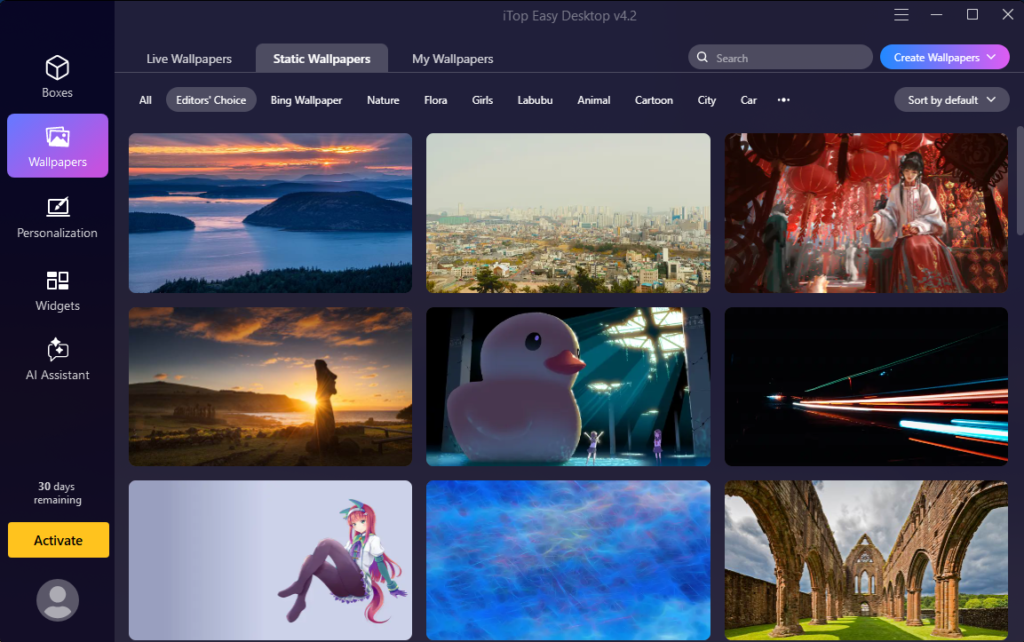
iTop Easy Desktop offers both static and live wallpapers with a wide range of options, including nature scenes, cartoons, cars, and games.
I chose a nature wallpaper because it helps me feel more relaxed while working. Just click “Apply” to set it as your desktop background — super convenient.
Step 4: Add Some Widgets
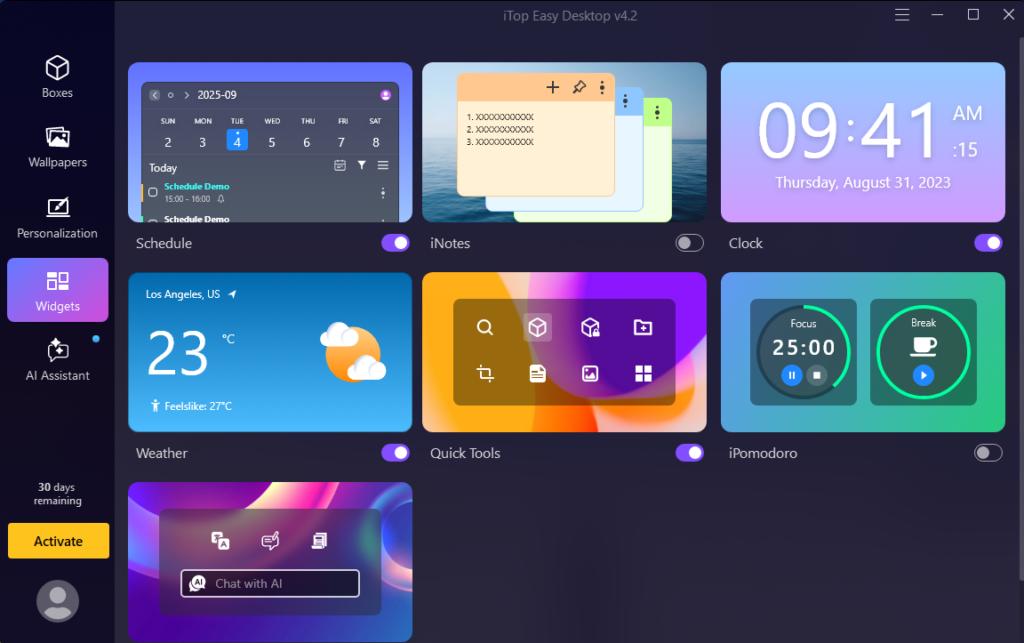
I think one of the best things about iTop Easy Desktop is that it provides many useful widgets for users, such as a calendar, sticky notes, a clock, and a weather forecast.
The tool I use most often is iNotes because my work is pretty busy, and I sometimes forget important tasks or projects. The desktop sticky notes are a great reminder for me.
Besides, widgets like the clock and weather forecast match the style of the desktop boxes perfectly, which makes the whole desktop look clean and visually pleasing.
Meet My Favorite Desktop Companion
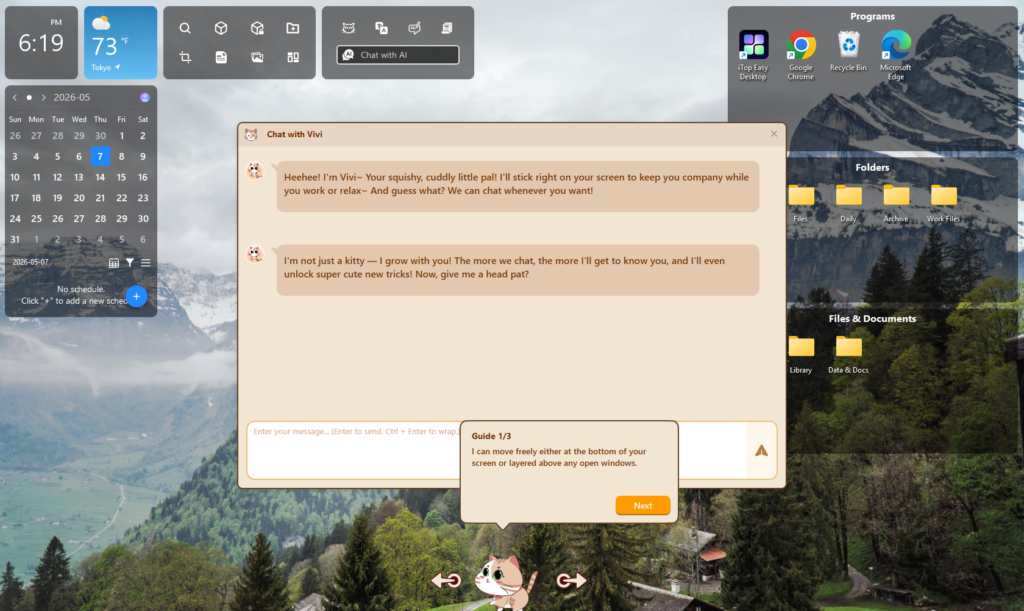
I especially want to recommend PawPal in iTop Easy Desktop — it’s a cute little virtual cat! After a long busy day, hearing soft purring sounds from your desktop feels surprisingly comforting.
Sometimes it walks around the screen, and other times it just curls up and sleeps. What’s even more interesting is that I can actually chat with it. You can think of it as a small AI assistant that keeps you company while you work.
My Honest Assessment After Daily Use
I am still using iTop Easy Desktop after the initial testing period ended. That fact speaks to its usefulness. Software I try for articles usually gets uninstalled within a week. This one stuck around.
iTop Easy Desktop has truly made organizing my desktop much more efficient and visually appealing. It not only keeps my desktop neat and organized, but also offers a wide variety of beautiful wallpapers. I really enjoy my current desktop setup, and I’d definitely recommend giving it a try yourself.